
Mastering BlendModes: How to Create Cinematic Overlays with Code
August 12, 2026 · By VideoFlowMaster the art of cinematic video overlays using VideoFlow's 16 blend modes. Learn how to programmatically stack light leaks, textures, and effects with code.
Mastering BlendModes: How to Create Cinematic Overlays with Code
When you move from manual video editing to programmatic video automation, the biggest challenge isn't just getting pixels on the screen—it's making those pixels look professional. In a traditional NLE like Premiere or After Effects, you achieve "the look" by stacking layers and changing their blend modes.
In VideoFlow, you do the exact same thing, but with a type-safe TypeScript API. Whether you're building a YouTube Shorts factory or a personalized SaaS recap system, mastering blend modes is the key to moving beyond flat, "generated" visuals and into cinematic territory.
Why Blend Modes Matter in Video Automation
Most automated videos look like static assets layered on top of each other. This happens because most programmatic tools only support simple alpha transparency. If you put a light leak over a video with 50% opacity, it just looks washed out.
To get the glow of a lens flare or the grit of a film texture, you need mathematical blending. VideoFlow supports 16 industry-standard blend modes (like screen, multiply, and overlay) that operate at the GLSL level, giving you high-performance, real-time compositing in the browser and on the server.
The Core Pattern: Stacking Overlays
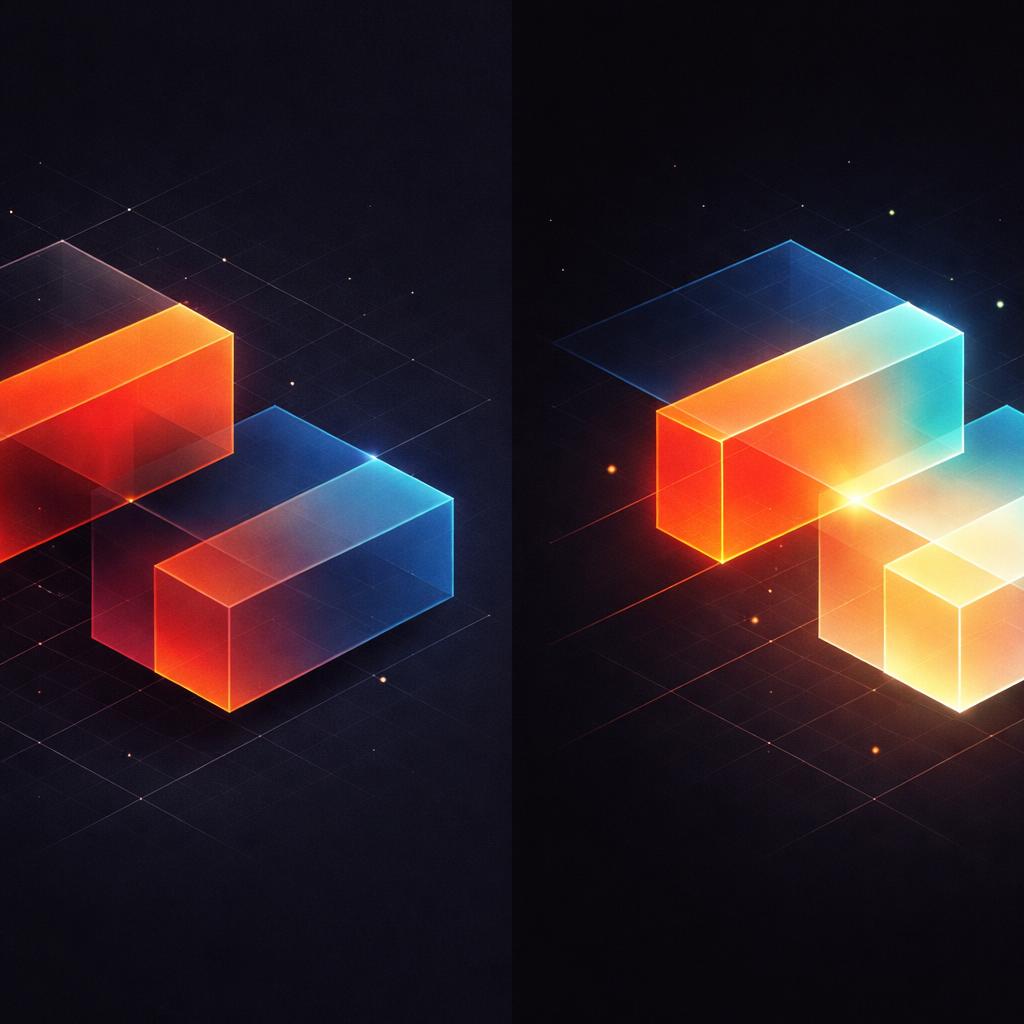
The most common use case for blend modes is the "Screen" overlay. This mode looks at the pixel values of the top layer and the background, effectively removing black areas and keeping the highlights. It's perfect for light leaks, dust, and sparks.
import VideoFlow from '@videoflow/core';

const $ = new VideoFlow({ width: 1920, height: 1080 });

// 1. The base footage
$.addVideo(
  { fit: 'cover' },
  { source: 'https://assets.example.com/footage.mp4' }
);

// 2. The cinematic overlay
const overlay = $.addVideo(
  {
    blendMode: 'screen', // Magic happens here
    opacity: 0.8,
    effects: [
      { effect: 'bloom', params: { strength: 0.5 } }
    ]
  },
  { source: 'https://assets.example.com/light-leak.mp4' }
);

$.wait('10s');
By setting the blendMode to 'screen', the light leak footage seamlessly integrates with the base video. The black background of the overlay disappears, leaving only the glowing light.
Advanced Techniques: Textures and Color Grading
While screen is great for light, multiply is your best friend for textures. If you want to add a paper grain or a subtle grunge effect to your video, multiply will darken the base footage based on the texture's luminosity.
For color grading, overlay and soft-light are indispensable. They increase contrast by lightening the light parts and darkening the dark parts, based on the overlay layer's colors. This is how you create "mood" programmatically.
const colorGrade = $.addShape(
  {
    fill: '#FF5A1F',
    blendMode: 'soft-light',
    opacity: 0.2
  },
  { shapeType: 'rectangle' }
);
This simple snippet adds a warm, brand-aligned tint to your entire video without washing out the details.
How VideoFlow Handles Compositing
VideoFlow's Core Builder API is designed to treat these operations as first-class citizens. Because every visual layer (text, image, video, shape) inherits from a common VisualLayer class, they all support the blendMode property.
What makes this powerful is the three-renderer rule. Whether you are previewing your video at 60fps in the Playground, exporting a high-quality MP4 in the browser via @videoflow/renderer-browser, or running a batch job on the server with @videoflow/renderer-server, the math remains identical. Your cinematic overlays will look exactly the same everywhere.

Taking it Further: Animating the Look
Blend modes don't have to be static. You can combine them with VideoFlow's animation system to create dynamic transitions. For example, you can animate the opacity of an overlay layer or even animate effect parameters to make the light leak pulse in sync with audio.
overlay.animate(
  { opacity: 0 },
  { opacity: 0.8 },
  { duration: '2s', easing: 'easeInOut' }
);
Conclusion
Programmatic video doesn't have to look like a slide deck. By leveraging VideoFlow's GLSL-powered blend modes, you can bring the polish of a professional edit suite to your automated pipelines.
Ready to start building? Head over to our Docs to see the full list of supported blend modes, or fork a project on GitHub to see how we use them in our official examples.