
Dynamic HUDs and Overlays: Mastering Layer Groups in VideoFlow
October 31, 2026 · By VideoFlowLearn how to use Layer Groups in VideoFlow to build complex, animated HUDs and overlays with shared transitions and GLSL effects.
Dynamic HUDs and Overlays: Mastering Layer Groups in VideoFlow
Building complex video interfaces—like data-rich Heads-Up Displays (HUDs) or interactive stream overlays—often feels like managing a thousand moving parts. If you've ever tried to animate a multi-layered card in FFmpeg or a standard video editor, you know the pain of keeping every sub-component in sync.
In VideoFlow, we solve this with the $.group primitive. By treating a collection of layers as a single unit, you can apply global transforms, shared transitions, and unified GLSL effects pipelines without losing the precision of individual layer control.
Why Composition Matters for Overlays
When you're building a programmatic video interface, the biggest challenge isn't rendering a single text layer; it's managing the relationships between layers. Imagine a futuristic HUD element: a background rectangle, a scanning line, three data labels, and a glowing border.
Without groups, you would have to animate the opacity and position of all six layers separately. If you wanted to apply a 'bloom' effect to the whole thing, you'd have to calculate it six times. With $.group, you composite the sub-tree onto a private surface first, then transform that surface as one. This isn't just about cleaner code; it's about architectural sanity.

Building a Data HUD in 20 Lines
The $.group method takes three arguments: its visual properties, its flow settings (like transitions), and a callback function where you define its children. The children authored inside the group see a local coordinate system, making it trivial to build reusable UI components.
import VideoFlow from '@videoflow/core';

const $ = new VideoFlow({ width: 1920, height: 1080 });

// Create a grouped HUD element
const hud = $.group(
  { position: [0.8, 0.2], scale: 0.8 }, // Positioned top-right
  {
    transitionIn: { transition: 'overshootPop', duration: '600ms' },
    transitionOut: { transition: 'fade', duration: '400ms' },
  },
  () => {
    // Background panel
    $.addShape(
      { width: 40, height: 25, fill: '#1c2233', opacity: 0.8, cornerRadius: 1 },
      { shapeType: 'rectangle' }
    );

    // Scanning line effect
    const line = $.addShape(
      { width: 40, height: 0.2, fill: '#FF5A1F' },
      { shapeType: 'rectangle' }
    );
    line.animate({ position: [0.5, 0] }, { position: [0.5, 1] }, { duration: '2s', wait: false });

    // Data labels
    $.addText({ text: 'SYSTEM STATUS', fontSize: 1.5, color: '#FF5A1F', position: [0.5, 0.2] });
    $.addText({ text: 'ACTIVE', fontSize: 4, fontWeight: 900, color: '#fff', position: [0.5, 0.6] });

    $.wait('4s');
  }
);

// Rotate the entire HUD group while it's active
hud.animate({ rotation: -2 }, { rotation: 2 }, { duration: '4s', wait: false });
This pattern allows you to build complex layers that behave like independent objects. The wait: false flag in the animation calls ensures that the group's internal flow continues while the visual properties are being manipulated.
Advanced Techniques: Blend Modes and GLSL Effects
To make your HUDs feel truly cinematic, you need to step beyond simple shapes. VideoFlow's integration of GLSL effects and blend modes is where the toolkit really shines compared to basic shell scripts or other Remotion alternatives.
Screen and Additive Blending
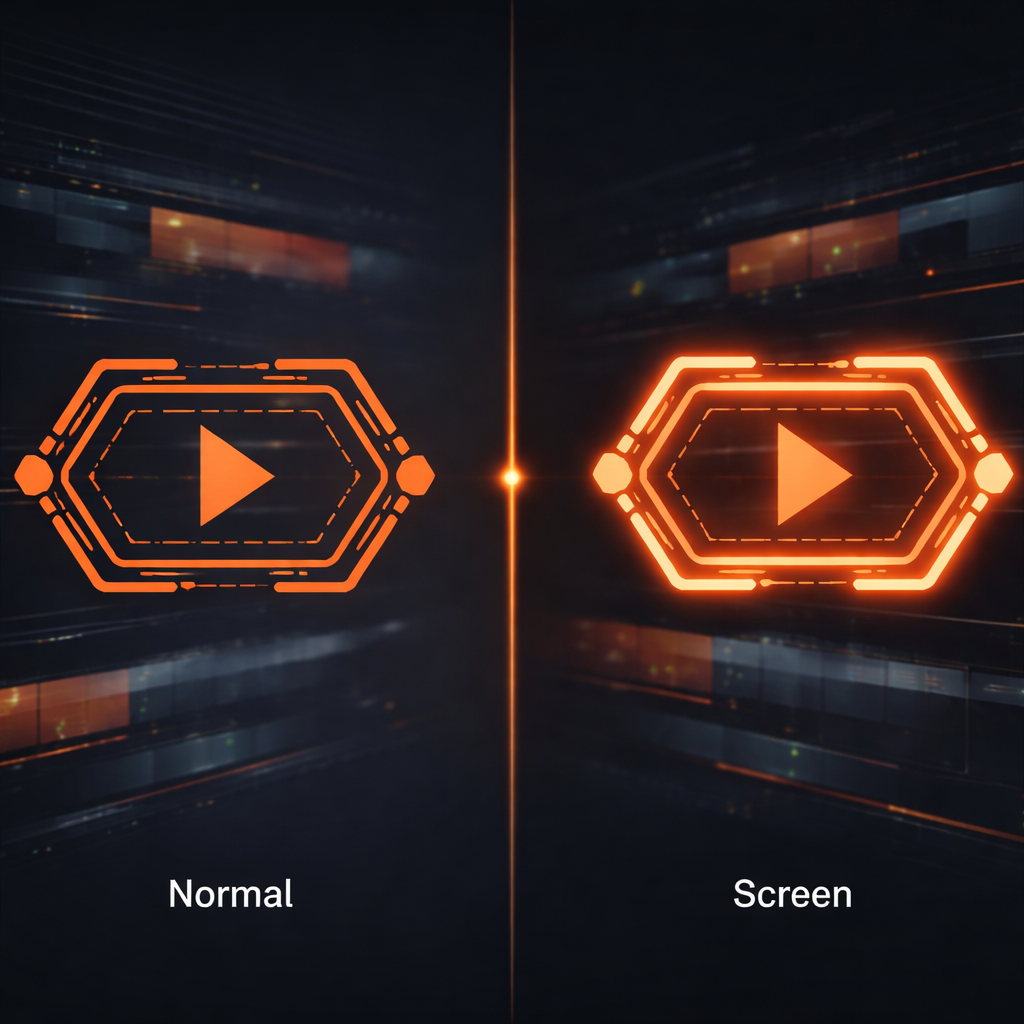
For overlays, the screen blend mode is your best friend. It ignores the black/dark parts of a layer and brightens the layers beneath it, perfect for 'holographic' effects. You can apply this directly to the group or to individual layers inside it.
Unified Effect Passes
One of the most powerful features of VideoFlow groups is the ability to run an effect over the composite result of the group. Instead of adding a glow effect to every text and shape layer (which is computationally expensive), you can add it once to the group itself.
$.group(
  {
    effects: [
      { effect: 'glow', params: { strength: 0.5, radius: 2 } },
      { effect: 'chromaticAberration', params: { amount: 0.02 } }
    ]
  },
  {},
  () => {
    // All children here will inherit the glow and aberration
    $.addText({ text: 'WARNING', color: '#FF5A1F' });
    $.wait('2s');
  }
);
How VideoFlow Handles Overlays
Because the VideoFlow Core is Apache-2.0 and produces portable VideoJSON, your HUD designs are not locked into a specific environment. You can preview them at 60fps in the browser using @videoflow/renderer-dom, then export them as high-quality MP4s on your server with @videoflow/renderer-server without changing a single line of code.
This portability is what makes VideoFlow the ideal choice for developers building automated video pipelines or SaaS dashboards. You get the power of a professional compositing engine with the simplicity of a TypeScript builder.
Get Started with Groups
Ready to build your own dynamic overlays? The best way to start is by experimenting with the Playground, where you can see the effects of layer groups in real-time.
- Check out the Layer Groups Guide for deep-dive documentation.
- Explore our Examples Gallery for inspiration on HUD layouts.
- Star us on GitHub to follow the latest updates to the renderer matrix.
Stop managing individual frames and start composing scenes. With VideoFlow, your video timeline is just another data structure.