
Beyond Opacity: How to Use BlendModes for Programmatic Motion Graphics
May 21, 2026 · By VideoFlowMaster the art of compositing in programmatic video. Learn how to use VideoFlow's 16 blendModes to create cinematic motion graphics and complex light effects with code.
Beyond Opacity: How to Use BlendModes for Programmatic Motion Graphics
When most developers start building video with code, they reach for opacity to handle layering. It’s the obvious choice: make one thing see-through so the thing behind it shows up. But if you want your programmatic video to look like it was crafted in a professional motion graphics suite rather than a web browser, you need to go beyond simple transparency.
You need blendModes.
In this guide, we’ll explore how to use the 16 professional blend modes available in the VideoFlow core API to create cinematic light effects, complex textures, and high-impact motion graphics that simple opacity can't touch.
Why BlendModes Matter in Programmatic Video
In standard CSS or canvas rendering, layers are usually just stacked. With blendMode, you change the mathematical relationship between the pixels of a layer and the pixels of the layers beneath it.
This is the secret sauce of professional compositing. Instead of just making a "light leak" image 50% transparent (which often looks washed out and grey), you can set it to screen. This tells the renderer to only keep the bright parts of the image, effectively "adding" light to the scene without muddying the shadows.
For anyone building motion graphics with code, mastering these modes is the fastest way to level up the visual quality of your automated content.
The VideoFlow BlendMode Matrix
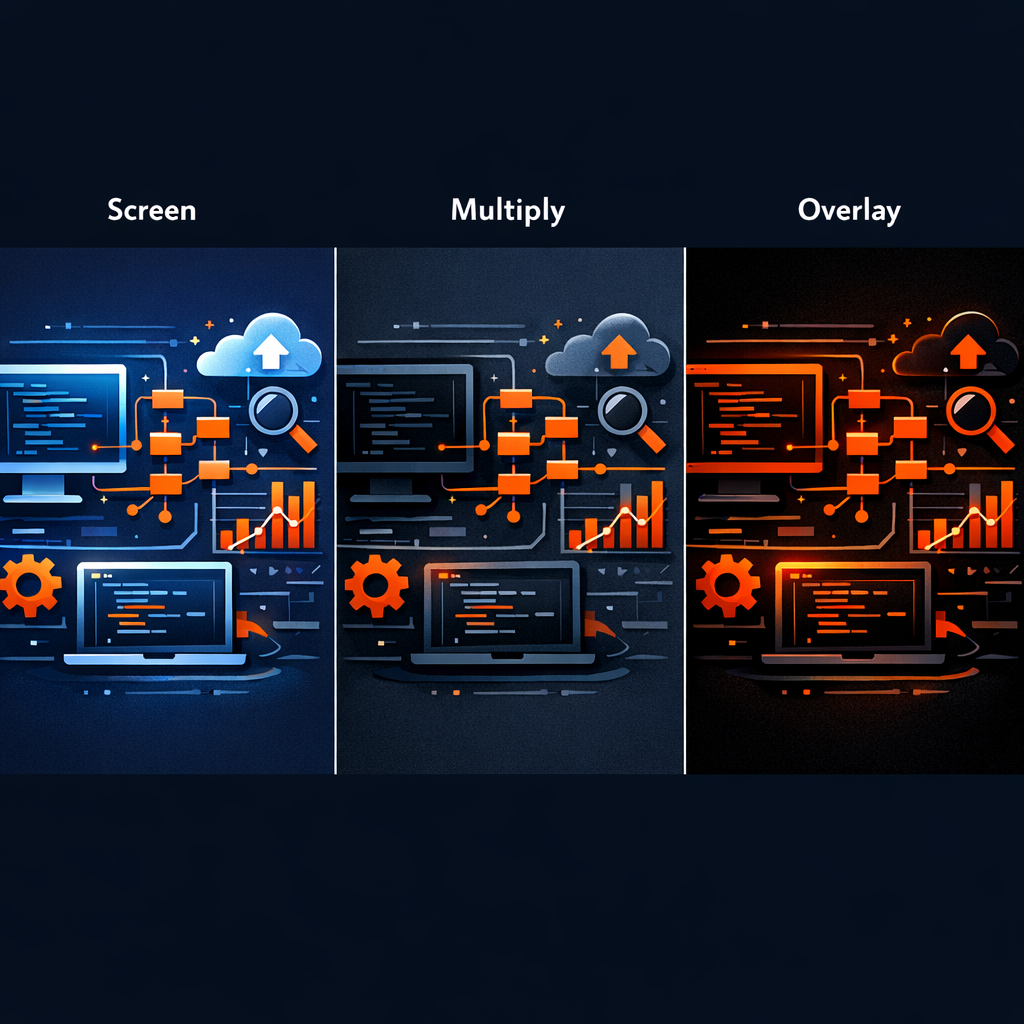
VideoFlow supports 16 standard blend modes, matching the industry-standard set found in tools like After Effects and Photoshop. While you can experiment with all of them in the Playground, here are the "big three" you'll use most often:
- Multiply: The "darken" mode. It multiplies the colors of the top layer with the bottom. White becomes transparent, and dark colors stay dark. Perfect for adding textures, shadows, or "gritty" overlays.
- Screen: The "lighten" mode. It’s the inverse of Multiply. Black becomes transparent, and bright colors brighten the background. This is your go-to for light leaks, flares, and glowing UI elements.
- Overlay: A mix of both. It preserves the highlights and shadows of the background while shifting the mid-tones to the color of the top layer. Excellent for color grading and stylized overlays.
Code Example: Creating a Programmatic Light Leak
Let's look at a practical example. Suppose you want to add a cinematic "light leak" to a video background. Using simple opacity would make the background look dull. Using blendMode: 'screen' makes it look like real light hitting the lens.
import VideoFlow from '@videoflow/core';

const $ = new VideoFlow({ width: 1920, height: 1080 });

// 1. The base video layer
$.addVideo(
  { fit: 'cover' },
  { source: 'https://assets.videoflow.dev/samples/nature-loop.mp4' }
);

// 2. The light leak overlay
const leak = $.addImage(
  {
    fit: 'cover',
    blendMode: 'screen', // This is where the magic happens
    opacity: 0.8,
    effects: [
      { effect: 'gaussianBlur', params: { radius: 2 } }
    ]
  },
  { source: 'https://assets.videoflow.dev/samples/light-leak-texture.jpg' }
);

// Animate the leak to create a pulsing light effect
leak.animate(
  { opacity: 0.3 },
  { opacity: 0.9 },
  { duration: '4s', easing: 'easeInOut', wait: false }
);

$.wait('5s');
const videoJson = await $.compile();
By setting the blendMode to screen, the black parts of the light-leak-texture.jpg disappear entirely, while the bright orange and yellow streaks bloom over the background video.
Advanced Compositing: Effects + Blending
One of the most powerful features of VideoFlow is that blend modes are applied after the layer's effect stack. This allows you to stack GLSL effects—like those covered in our guide on Mastering GLSL Video Effects with VideoFlow—and then blend the result into the scene.
For instance, you could create a glowing shape by adding a bloom effect to a ShapeLayer and then setting that layer's blend mode to color-dodge. This creates a vibrant, high-energy glow that interacts dynamically with the colors behind it.

How VideoFlow Handles Blending
Unlike some web-based video tools that struggle with complex compositing, VideoFlow handles blend modes natively in the GPU. Whether you are using @videoflow/renderer-browser for zero-cost client-side export or @videoflow/renderer-server for high-volume batch jobs, the math is identical.
Because VideoFlow compiles your builder calls into a portable VideoJSON document, your blend modes are preserved perfectly across every environment. The same screen blend you see in the 60fps live preview will be exactly what renders in your final MP4.
Summary and Next Steps
Stop settling for flat, opaque layers. Start thinking about how your layers interact. By adding blendMode to your VideoFlow blendMode tutorial toolkit, you unlock a level of visual polish that separates "automated content" from "cinematic video."
Ready to experiment?
- Head over to the VideoFlow Playground to try different blend modes in real-time.
- Check out the official documentation for the full list of supported properties.
- Star the project on GitHub to stay updated on new effects and features.