Cinematic GLSL Effect Stacking: Building High-End Visuals with Code
May 22, 2026 · By VideoFlowLearn how to use VideoFlow's GPU-accelerated shader passes to create professional-grade visuals using cinematic GLSL effect stacking.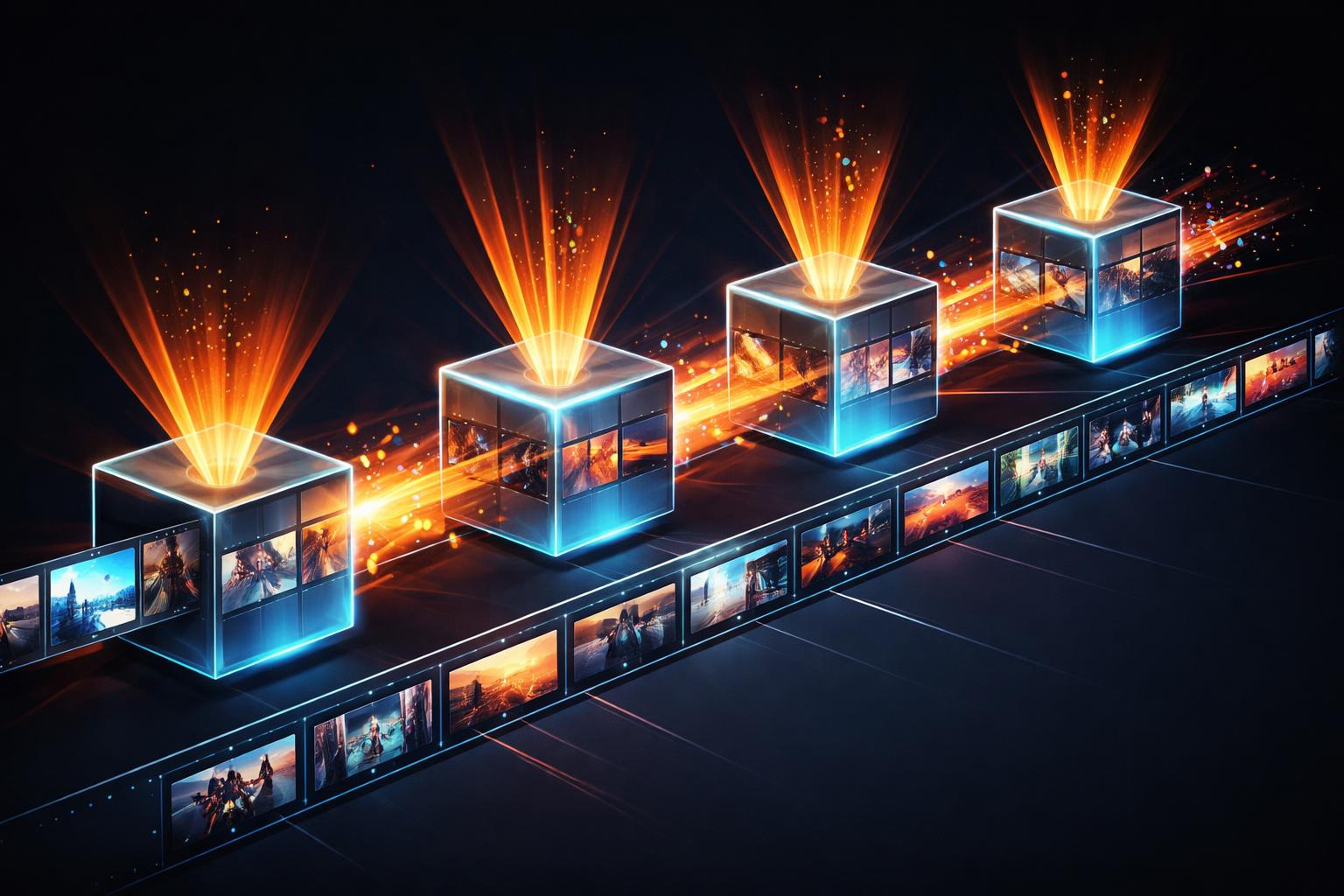
Cinematic GLSL Effect Stacking: Building High-End Visuals with Code
Most programmatic video tools share a common problem: the output looks flat. When you generate an MP4 from raw data, the results often feel more like a basic slideshow than a professional production.
Achieving that "cinematic" feel usually requires a round-trip through After Effects or Davinci Resolve. But for automated content factories or SaaS dashboards, manual editing doesn't scale. This is where cinematic GLSL effect stacking in VideoFlow changes the game.
By leveraging GPU-accelerated shaders directly in the rendering pipeline, you can apply professional-grade color grading, bloom, and lens distortions to your layers using pure TypeScript. In this guide, we’ll explore how to stack these effects to create high-end visuals that look like they were touched by a human editor.

The Power of the Effect Stack
In VideoFlow, effects are not just simple filters; they are GLSL shaders applied sequentially. Every visual layer—be it text, image, or video—exposes an effects array in its properties.
The order of this array is critical. Because each effect pass reads the output of the previous pass, stacking a gaussianBlur before a bloom will produce a soft, ethereal glow, whereas reversing them would result in a sharp glow that is then blurred away.
const heroImage = $.addImage(
  {
    fit: 'cover',
    effects: [
      // Pass 1: Warm up the scene
      { effect: 'colorGrade', params: { temperature: 0.2, saturation: 0.1, contrast: 0.1 } },
      // Pass 2: Add light diffusion
      { effect: 'bloom',      params: { threshold: 0.7, intensity: 0.8, radius: 1.2 } },
      // Pass 3: Focus the viewer's eye
      { effect: 'vignette',   params: { intensity: 0.4, radius: 0.8 } },
    ],
  },
  { source: 'https://videoflow.dev/samples/hero-bg.jpg' },
);
Animating Shaders with Dot-Path Precision
One of the most powerful features of the @videoflow/core builder is the ability to animate individual effect parameters. You don't have to animate the entire effect object; instead, you use a dot-path string to target specific fields.
For example, you can create a dynamic "light sweep" across a logo or animate a pixelate reveal. This level of control is what makes the Playground such a powerful environment for prototyping motion graphics.
const title = $.addText({ text: 'NEXT GEN', fontSize: 8 });

title.animate(
  { 'effects.chromaticAberration.amount': 0 },
  { 'effects.chromaticAberration.amount': 0.02 },
  { duration: '1s', easing: 'easeOut' }
);
Why Your Pipeline Should Be Shader-First
When you move your post-production logic into code, you gain three major advantages:
- Consistency: Every video in your automated pipeline shares the exact same "brand look," down to the specific hex codes and shader intensities.
- Performance: Because VideoFlow uses WebCodecs and GLSL, these effects are applied during the render pass, avoiding the overhead of re-encoding multiple times.
- Portability: The VideoJSON produced by your builder is resolution-agnostic. The same effect stack will look identical on a 720p social preview and a 4K master render.
Whether you are building a YouTube Shorts factory or a personalized SaaS recap tool, mastering the effect stack is the shortest path to professional-grade output.
How VideoFlow Handles the Heavy Lifting
VideoFlow's architecture is built to handle complex shader chains without breaking a sweat. The core logic lives in @videoflow/core, while the heavy lifting is handled by our official renderers.
- @videoflow/renderer-browser uses WebGL2 to composite these effects in real-time in the user's tab.
- @videoflow/renderer-server runs the same GLSL code inside headless Chromium, ensuring that what you see in the preview is exactly what you get in the final MP4.
If you're coming from other tools, check out our Remotion alternatives guide to see how our JSON-first approach simplifies effect management.
Get Started with Cinematic Shaders
Ready to build your own visual style? The best way to learn is to experiment with the 42+ built-in GLSL effects.
- Dive into the Effects Guide for a full parameter reference.
- Fork one of our cinematic templates in the Examples gallery.
- Star the project on GitHub to stay updated on new shader releases.
Stop settling for flat programmatic video. Start stacking.