
Automated Podcast Audiogram Generator: Turning Audio into Viral Video with TypeScript
May 22, 2026 · By VideoFlowLearn how to build an automated podcast audiogram generator using TypeScript. Turn your audio files into engaging social media videos with dynamic captions and cinematic effects.
Automated Podcast Audiogram Generator: Turning Audio into Viral Video with TypeScript
Podcasting is an audio-first medium, but social media is a video-first world. To get your show in front of new listeners on LinkedIn, X, or Instagram, you need more than just a link—you need an engaging, visual hook. Traditionally, this meant manually creating "audiograms": snippets of audio paired with a waveform, a static background, and animated captions.
But manual editing doesn't scale. If you're producing weekly episodes, you need a way to automate the production of these assets. In this tutorial, we'll build an automated podcast audiogram generator using TypeScript and VideoFlow. We'll turn a raw MP3 and a transcript into a cinematic MP4, ready for social sharing.
Why Automate Your Audiograms?
Shipping a podcast is hard enough. Spending another two hours in After Effects or Premiere Pro just to make a 60-second clip is a recipe for burnout. Automation allows you to:
- Maintain Consistency: Every clip follows your brand guidelines (fonts, colors, and layouts) automatically.
- Scale Content Production: Generate ten clips from a single interview in seconds, not hours.
- Reduce Costs: Stop paying for expensive SaaS tools that charge per minute of video. With an open-source toolkit like VideoFlow, you only pay for your compute.
The Audiogram Blueprint
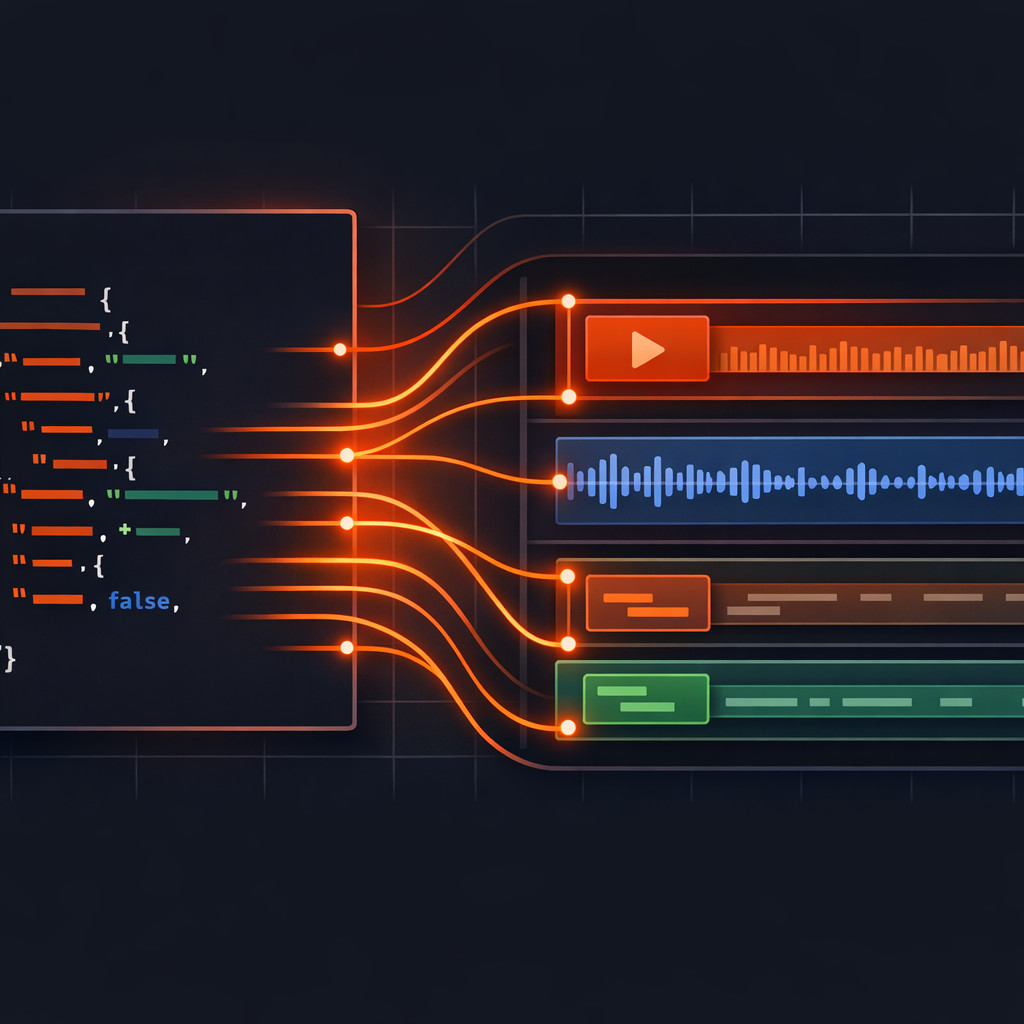
A high-performing audiogram usually consists of four main layers:
- Background: A high-quality image or blurred video to set the mood.
- Audio: The core content of your clip.
- Waveform/Visualizer: A visual representation of the audio to signal "this is a video worth listening to."
- Dynamic Captions: Time-coded text that keeps users engaged even when their sound is off.
With VideoFlow, we can define this entire structure in a portable VideoJSON document that renders identically across the browser and the server.
Implementing with @videoflow/core
Let's get into the code. We'll use @videoflow/core to build our timeline. Unlike other libraries that require a complex React runtime, VideoFlow uses a fluent, typed builder API that is perfect for server-side automation.
import VideoFlow from '@videoflow/core';

const $ = new VideoFlow({
  width: 1080,
  height: 1920, // Vertical format for mobile
  fps: 30
});

// 1. Add the background image with a subtle blur effect
const bg = $.addImage(
  { fit: 'cover', opacity: 0.8 },
  { source: 'https://assets.example.com/podcast-guest-photo.jpg' }
);

bg.animate(
  { scale: 1.0 },
  { scale: 1.1 },
  { duration: '30s', wait: false }
);

// 2. Add the audio track
const audio = $.addAudio(
  { volume: 1.0 },
  { source: 'https://assets.example.com/episode-snippet.mp3' }
);

// 3. Add dynamic captions
const captions = $.addCaptions({
  captions: [
    { caption: "We're building the future of video...", startTime: 0, endTime: 2.5 },
    { caption: "...and it starts with code.", startTime: 2.5, endTime: 5.0 },
  ],
  fontSize: 6,
  color: '#FF5A1F',
  fontWeight: 700,
  position: [0.5, 0.8] // Bottom-center
});

// 4. Add a decorative shape for the brand accent
$.addShape({
  shapeType: 'rectangle',
  width: 80,
  height: 0.5,
  fill: '#FF5A1F',
  position: [0.5, 0.75]
});

$.wait('30s');
const json = await $.compile();
In this snippet, we've used the CaptionsLayer to handle the heavy lifting of timing. By passing an array of time-coded entries, VideoFlow ensures the right text is on screen at the right frame.
Adding Cinematic Polish
To make your audiogram stand out, you need more than just static layers. VideoFlow ships with 27 transition presets and 42 GLSL effects out of the box.
For an audiogram, we can use the bloom effect to make our captions glow and the blurResolve transition to introduce the guest's photo smoothly. This is a major advantage over FFmpeg shell scripts, where implementing high-quality shaders requires deep knowledge of filter graphs.
// Applying a bloom effect to the captions
captions.animate(
  { effects: [{ effect: 'bloom', params: { strength: 0.5 } }] },
  { duration: 0 }
);

// Adding a smooth entrance transition
bg.settings.transitionIn = {
  transition: 'blurResolve',
  duration: '800ms'
};
How VideoFlow Handles This
What makes VideoFlow unique for this use case is its three official renderers.
- @videoflow/renderer-dom: You can build a real-time preview of the audiogram in your internal dashboard. Your marketing team can scrub through the timeline at 60 FPS to verify the captions are perfectly synced.
- @videoflow/renderer-server: Once the clip is approved, you can trigger a render on your Node.js server. Because VideoFlow uses WebCodecs inside headless Chromium, you can render MP4s without installing FFmpeg by default.
- @videoflow/renderer-browser: If you want to save on server costs, you can even let the user's browser export the final MP4 directly in their tab.
This "one JSON, any renderer" approach is why many developers are moving from Remotion to VideoFlow—it offers more flexibility in where and how you render your media.
Get Started with Automated Video
Building an automated podcast audiogram generator is just the beginning. The same logic can be applied to generating YouTube Shorts, e-commerce product videos, or personalized SaaS recaps.
If you're ready to start building, head over to the VideoFlow Playground to experiment with the builder API in your browser. You can also check out our getting started guide or dive into the source code on GitHub.
Stop editing by hand. Start rendering with code.